

Create an automation
Describe the task in a chat, or continue a chat where you have already completed it:Create an automation to add a prefix to the names of selected floor-plan views. Let me choose the views and enter the prefix before running. Skip a view if its name already starts with that prefix.AI creates an automation card. Open its parameters, choose a small set of views and run it. Inspect the names in Revit and ask for corrections in the same chat if needed.
Save it to the library
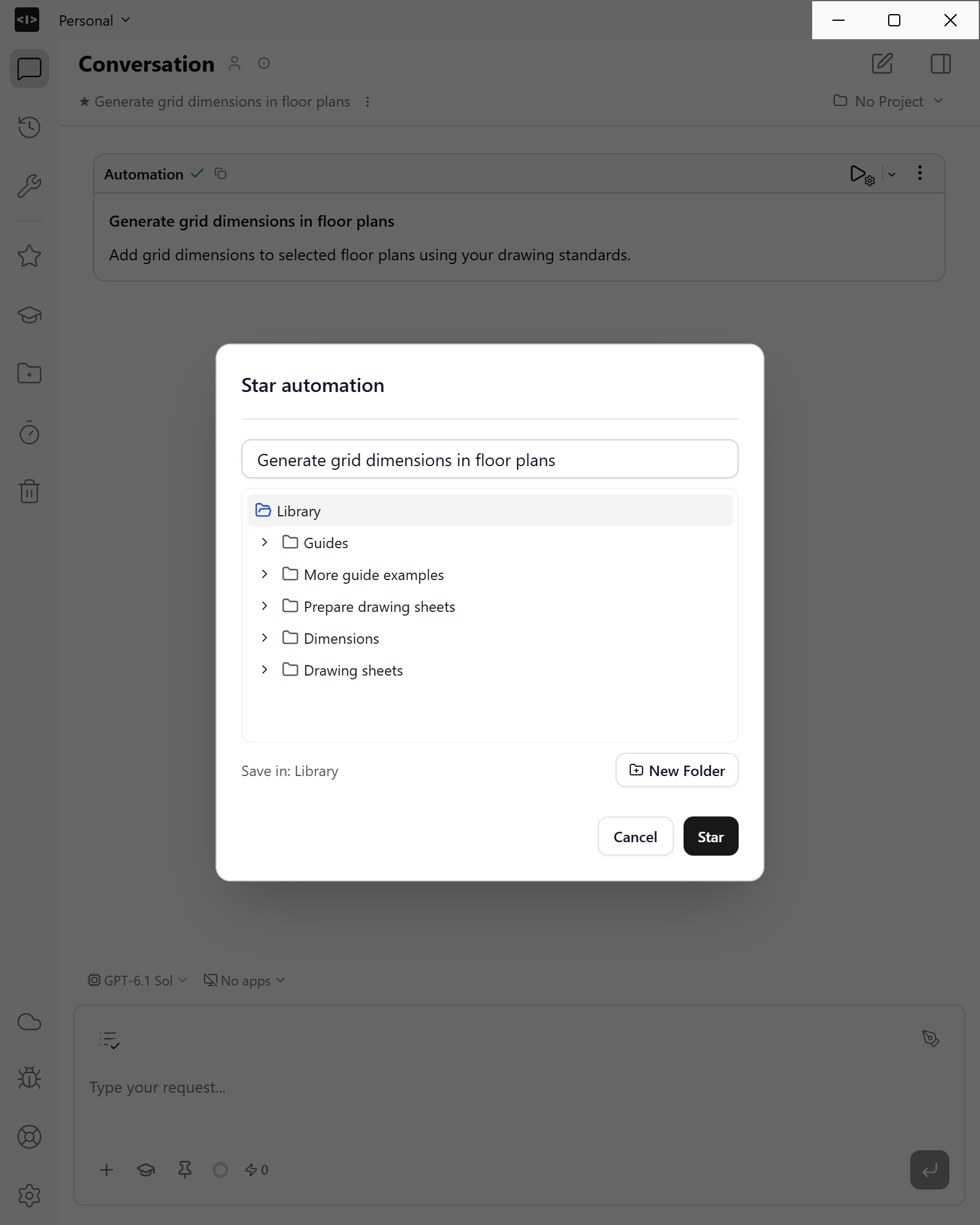
On the finished automation card, choose … → Star. Enter a recognizable name, choose a folder in Save in, then click Star. Find it later under Automations in the sidebar.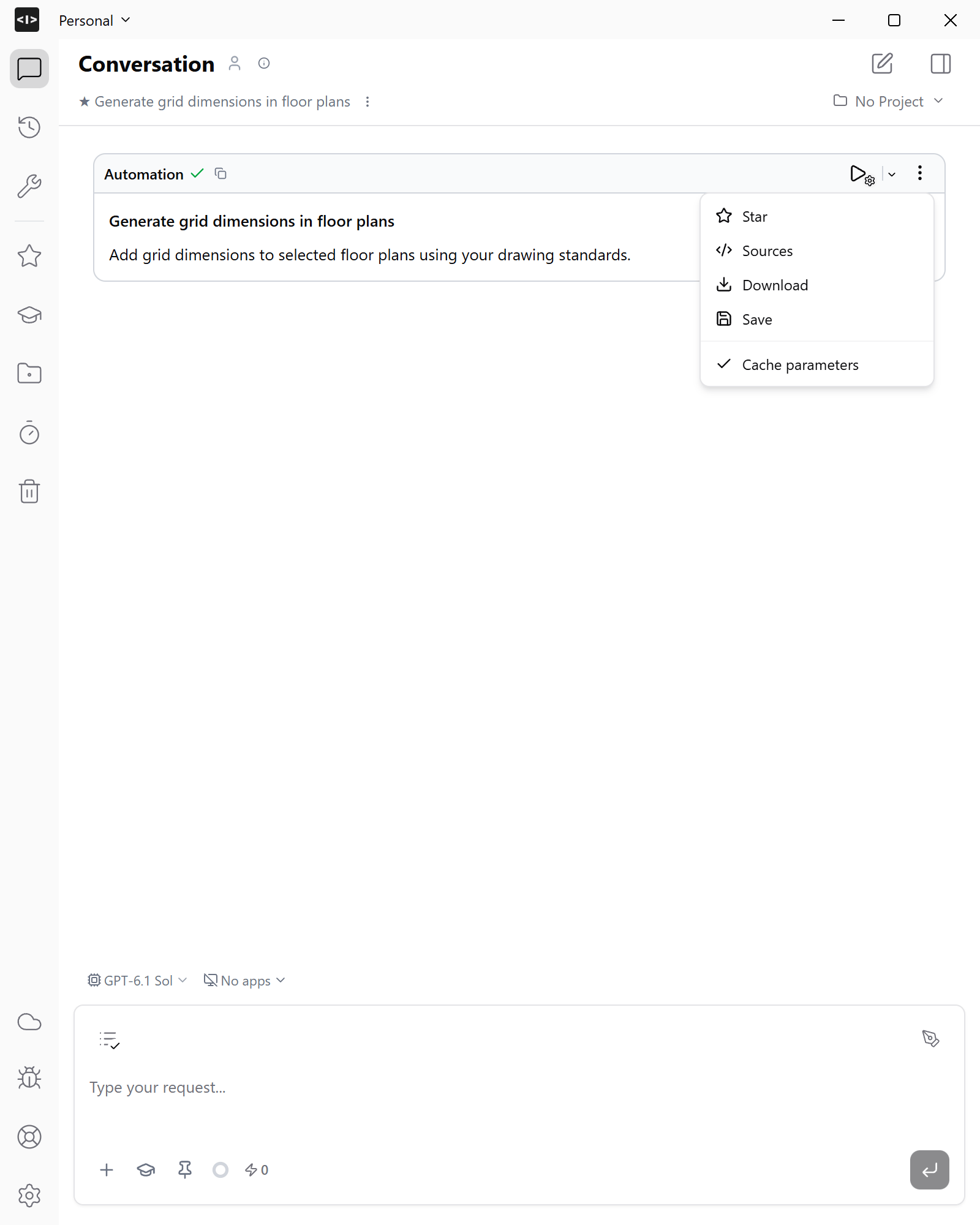
Run it again
- Connect the application document you want to work on.
- Find the saved automation in Automations.
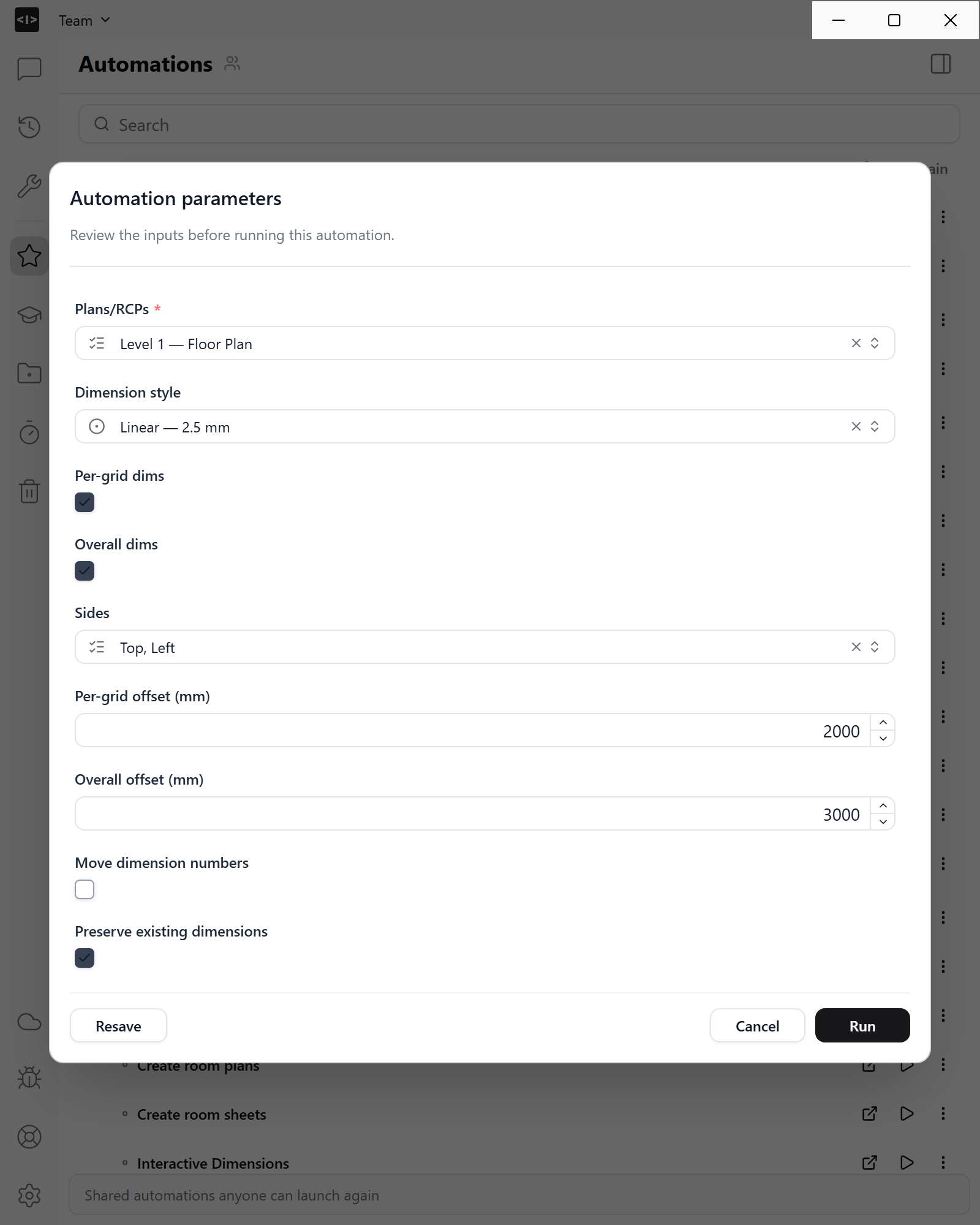
- Choose Run with params, set its inputs and click Run. An automation with no parameters offers Run directly.
- Inspect the result in the application or open the output file from the chat.
Share with your team
Open the saved entry’s … menu, choose Copy to and select your team’s workspace. Teammates with access to that library can find and run the copy. You can also copy a folder of automations.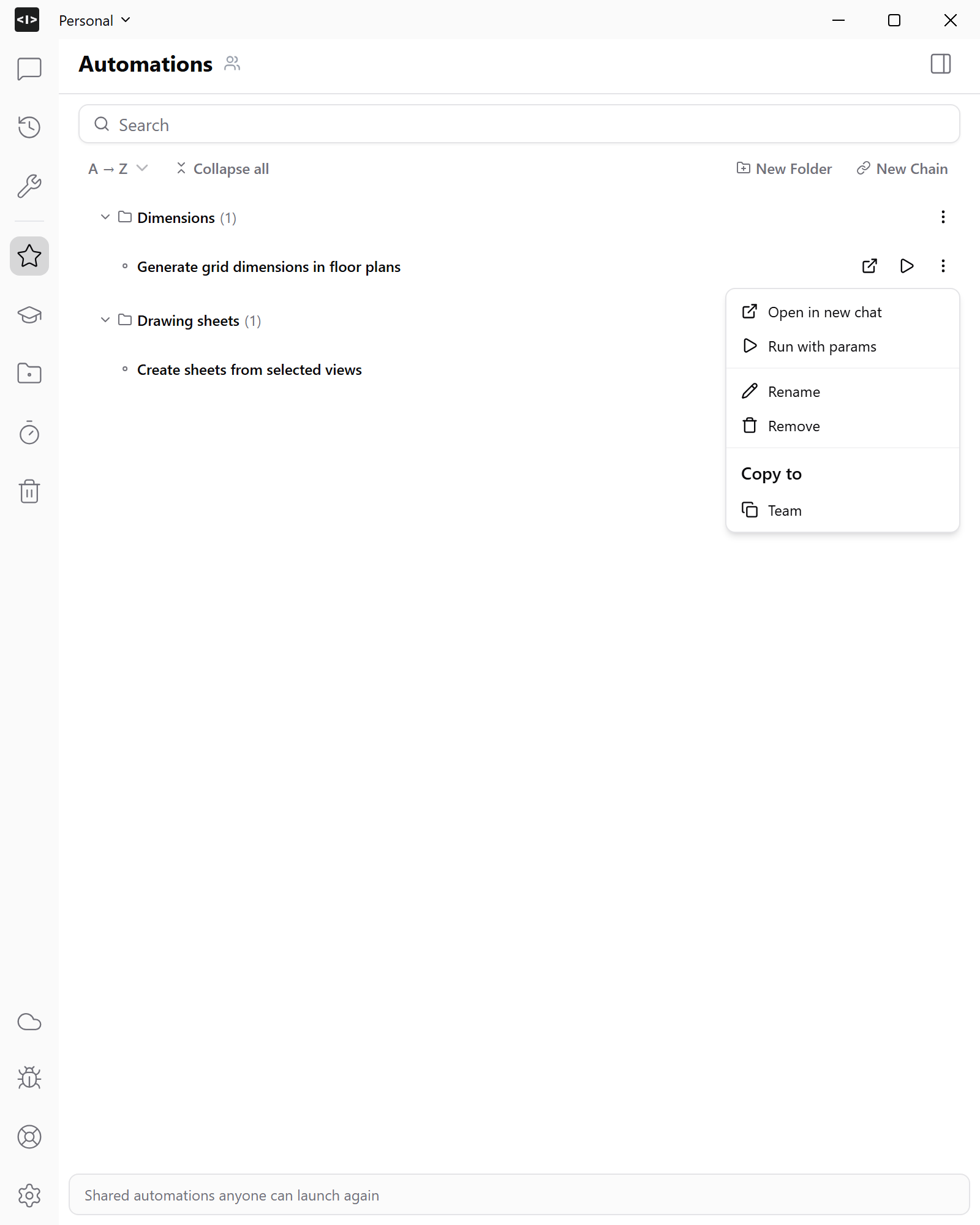
Edit an automation
Choose Open in new chat from the saved entry’s menu and describe the change:Add an option to remove an existing prefix before applying the new one. Keep the view selector.Run the revised version on a small selection. To keep it, use Star on the revised card and choose its library name and destination. Editing in a chat does not automatically replace the shared library entry.