1. Connection problems
Open your design application and the file you want to work on. In Ideatura, open Connected Apps and look for that file. Select it before sending your request. If it is missing, follow the setup guide for your application and check that its version is supported.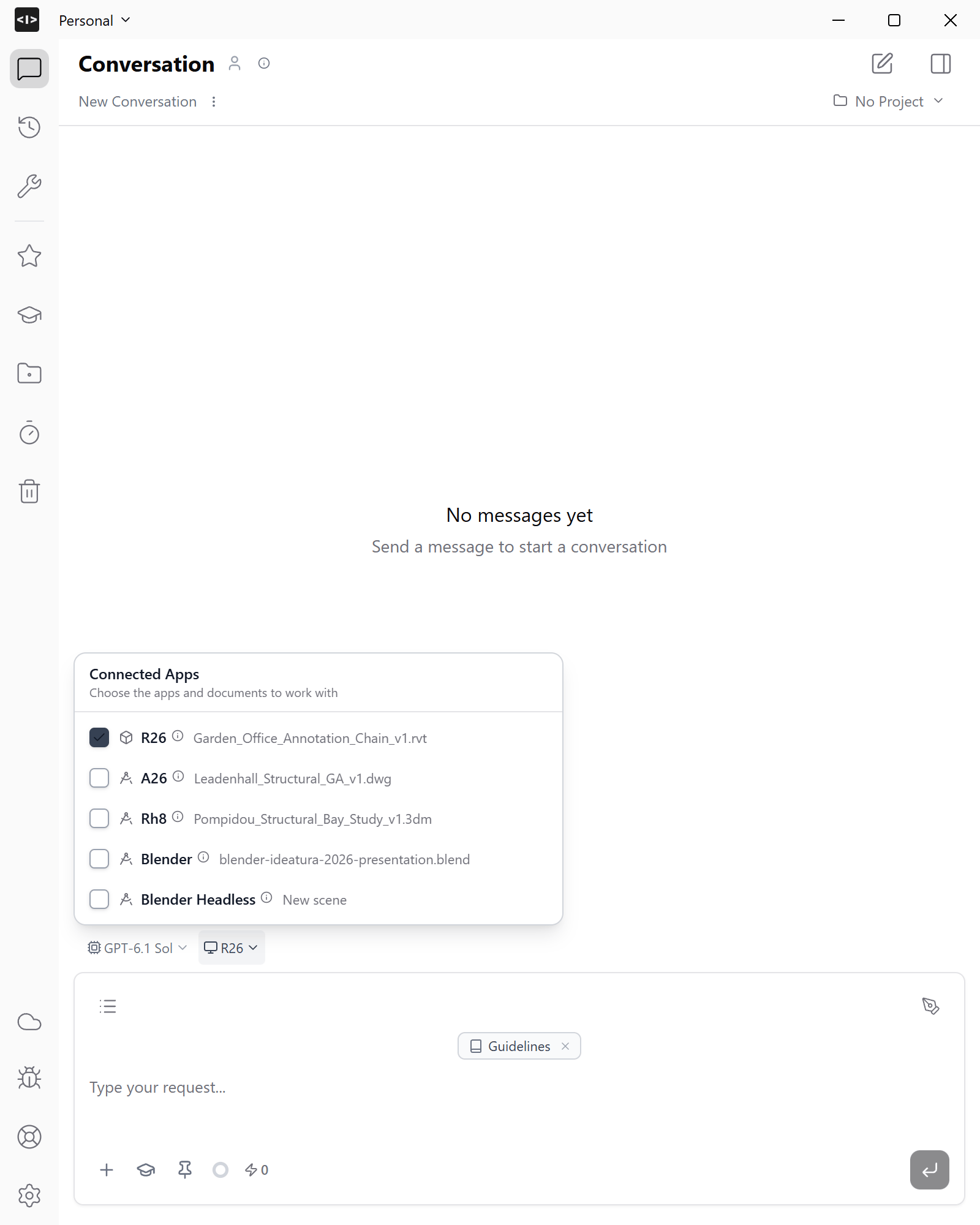
2. Interrupted tasks
If Studio shows Waiting for Revit / Check Revit to continue, switch to Revit and check for any dialog needing a response. The tooltip asks you to check and close open dialogs. If none is visible, do not assume a dialog caused the interruption. Read the latest task status and inspect what completed before retrying; request only the unfinished work. An unblocked status means execution can continue, not that the requested result is complete.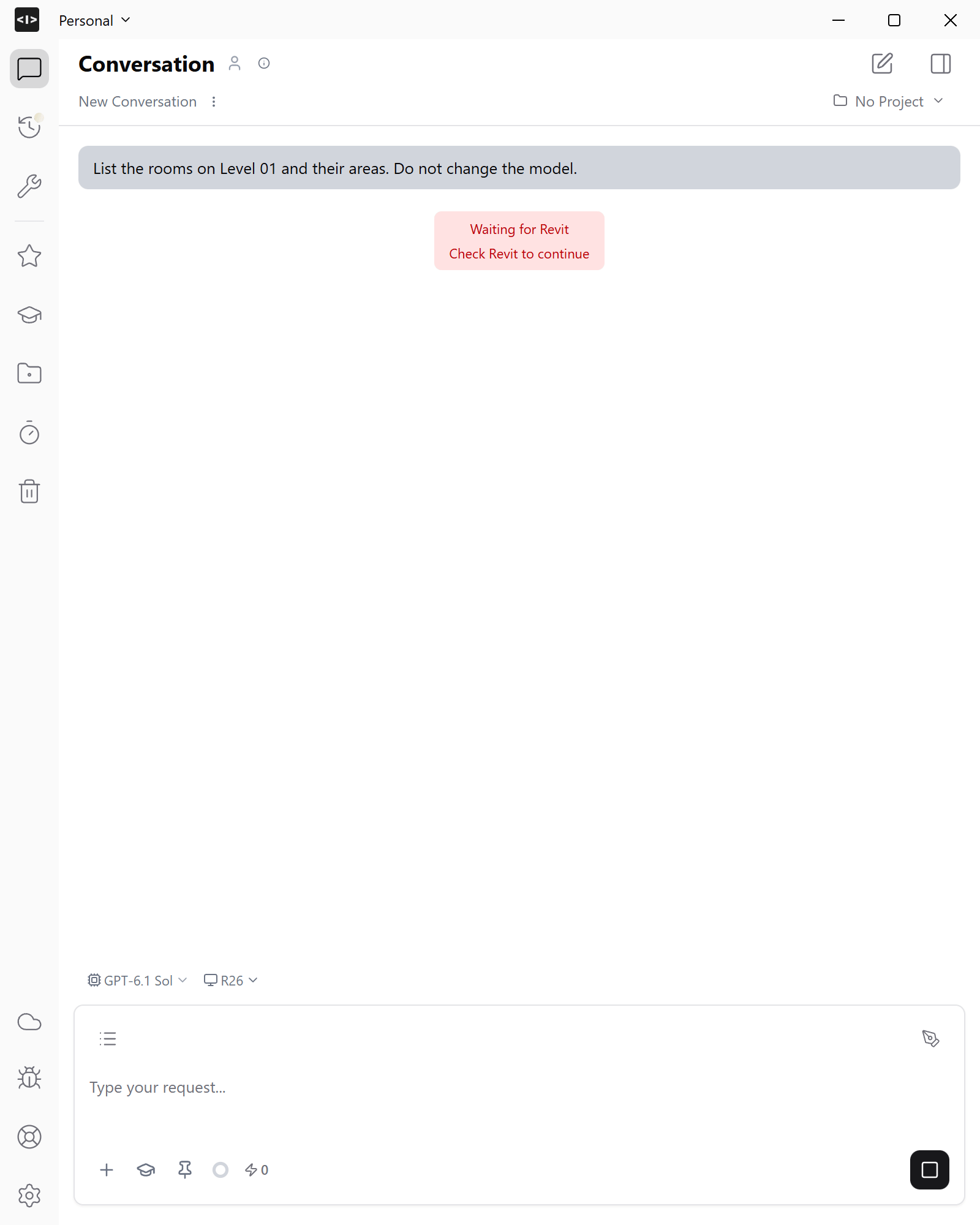
3. Report an issue
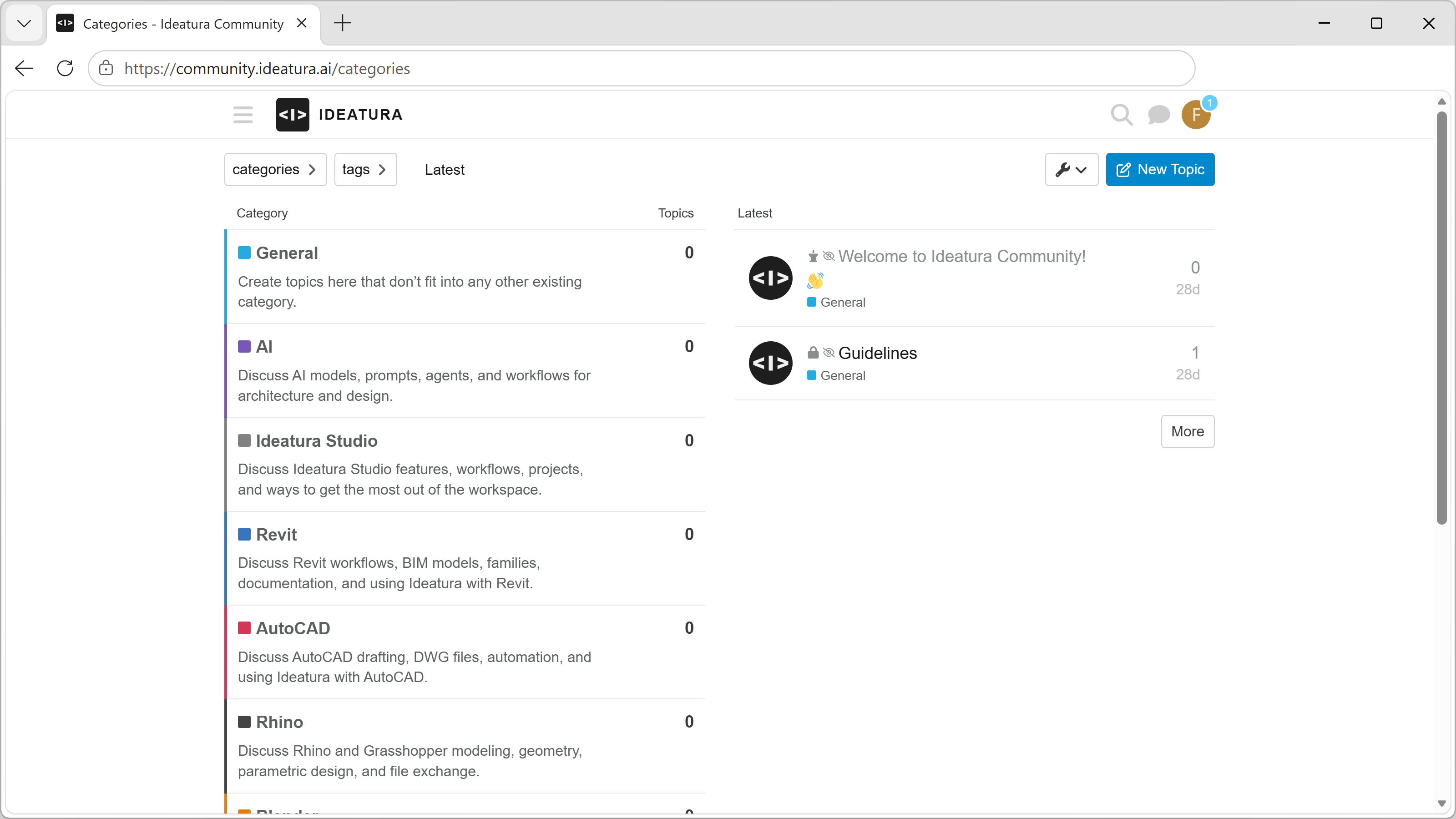
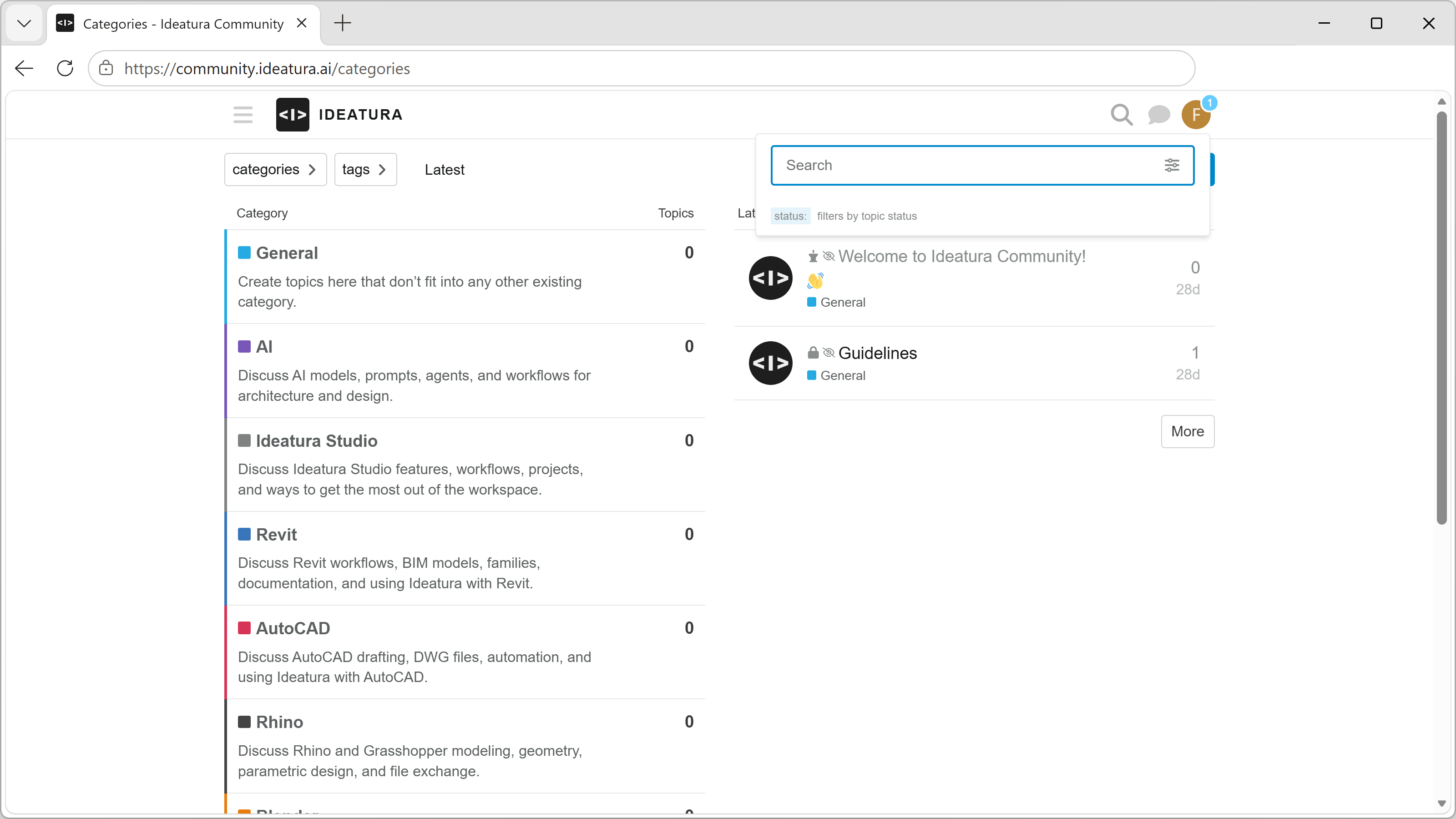
For how-to questions, start with the Community forum. To report a fault, open Report a problem. Include what you expected, what happened and the steps that led to the error. Add the Chat ID if available so the team can locate the task. You can report an issue even if you cannot reproduce it.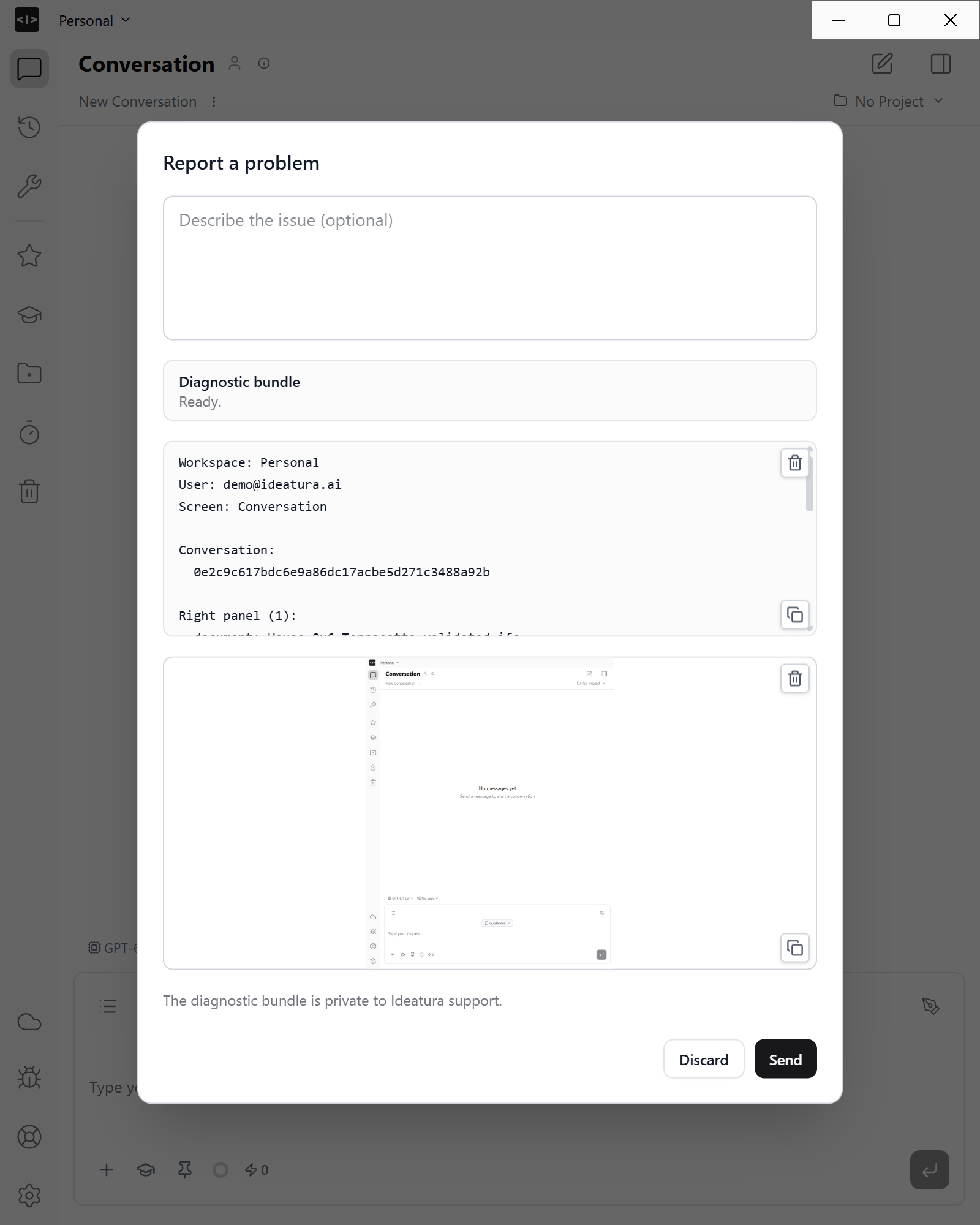
4. Diagnose before retrying
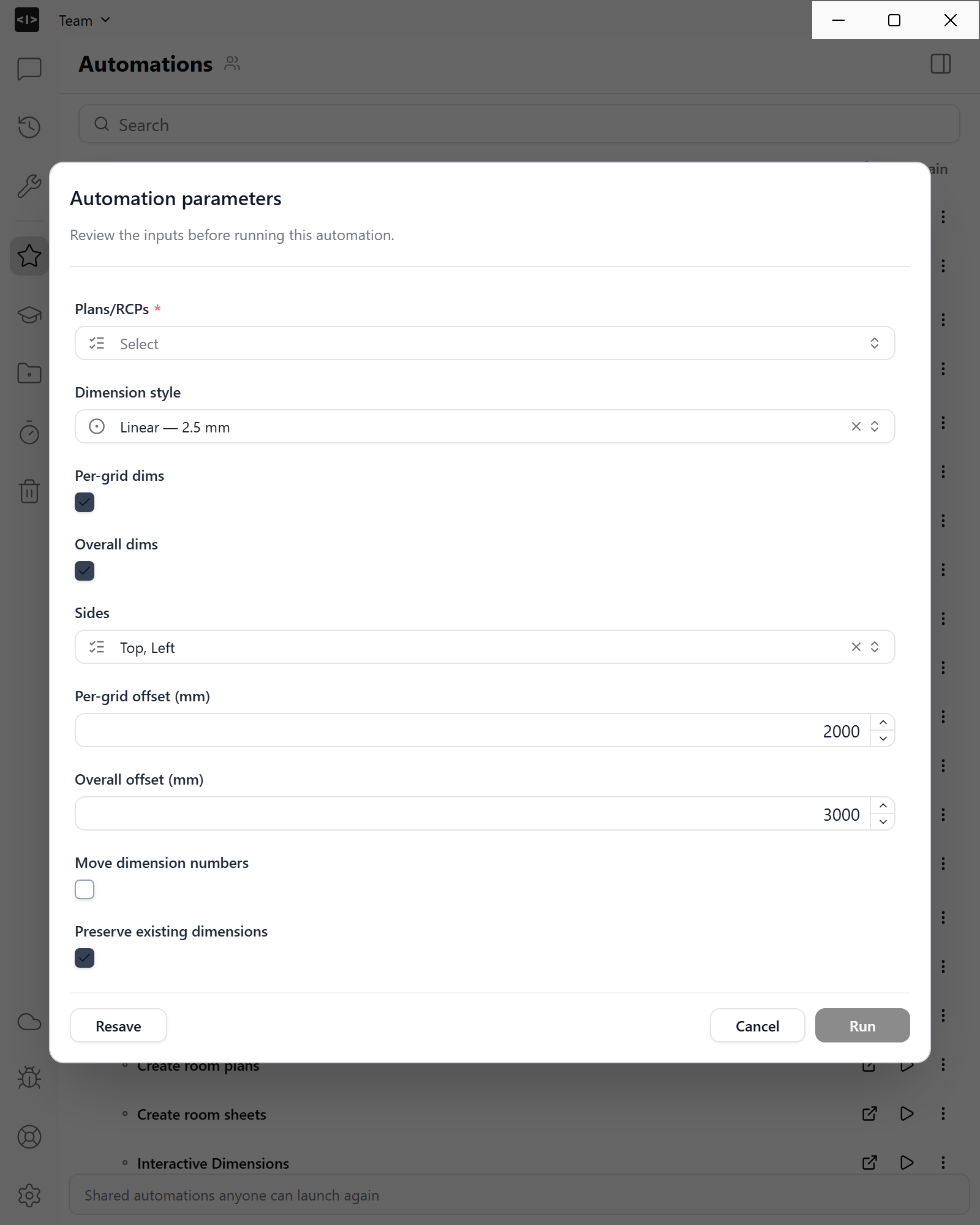
Check the actual state before changing settings: account access, connection, required inputs, open dialogs or an unsupported operation can each need a different response. Here, the required view is empty and Run is disabled. If a task already ran, inspect completed changes before retrying; preserve the last accepted result and report repeated faults with the error, versions and affected task.