1
Describe the sheet package
Connect Revit and identify the views, sheet numbers and title block.
Prepare an A3 drawing package for the Garden Office: a floor-plan sheet, an elevation sheet and a section sheet. Use the project’s A3 landscape title block. List the proposed sheet numbers and view assignments before placing anything. Preserve existing sheets.
2
Check one layout
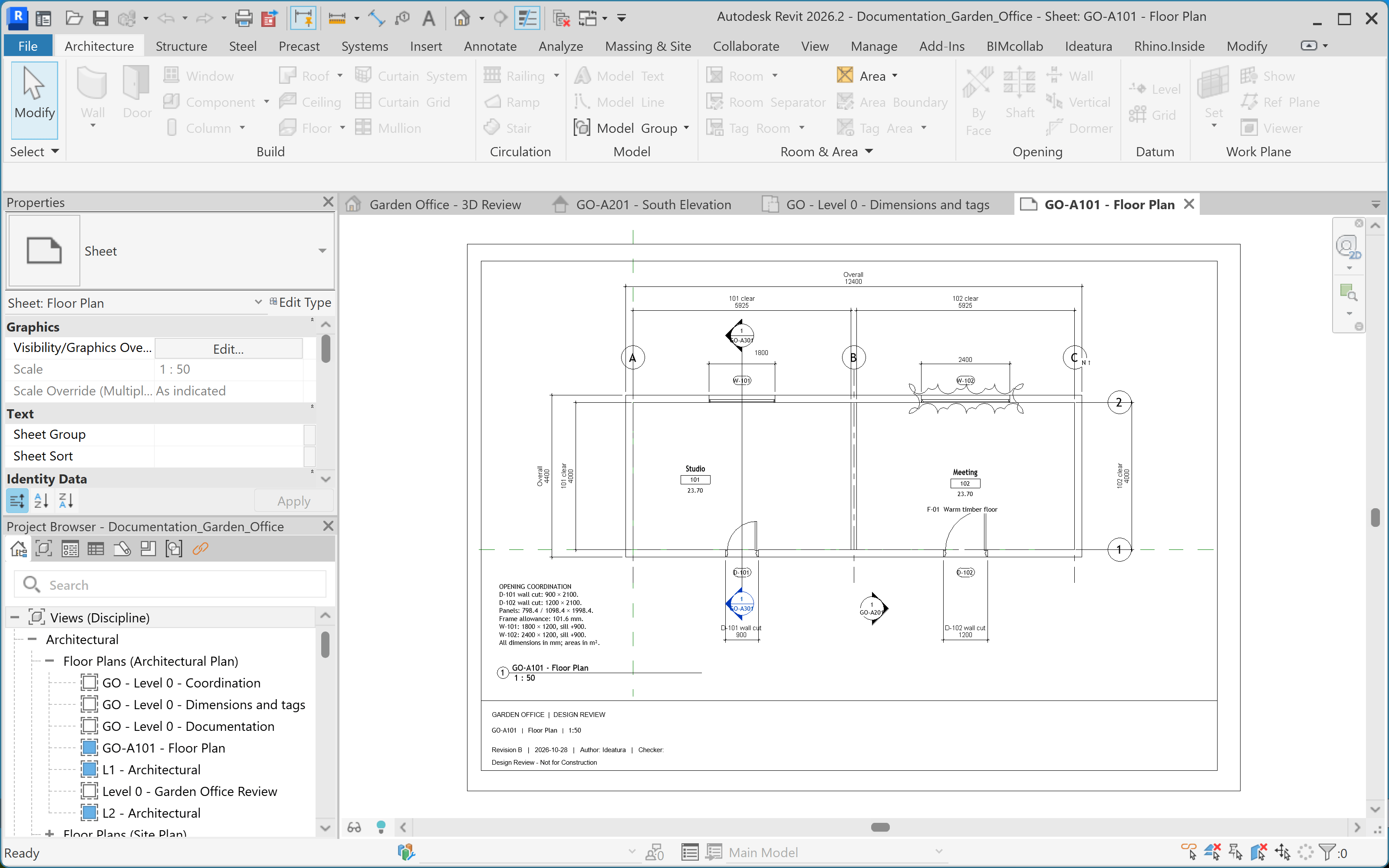
Ask Ideatura to place the first sheet’s views. Open the sheet in Revit and inspect viewport positions, titles, scale and usable title-block space.
Place the floor plan on the agreed sheet. Keep its scale unchanged and leave space for the viewport title. Report if it does not fit rather than silently changing the scale.
3
Create and save an automation
Continue from the checked layout:
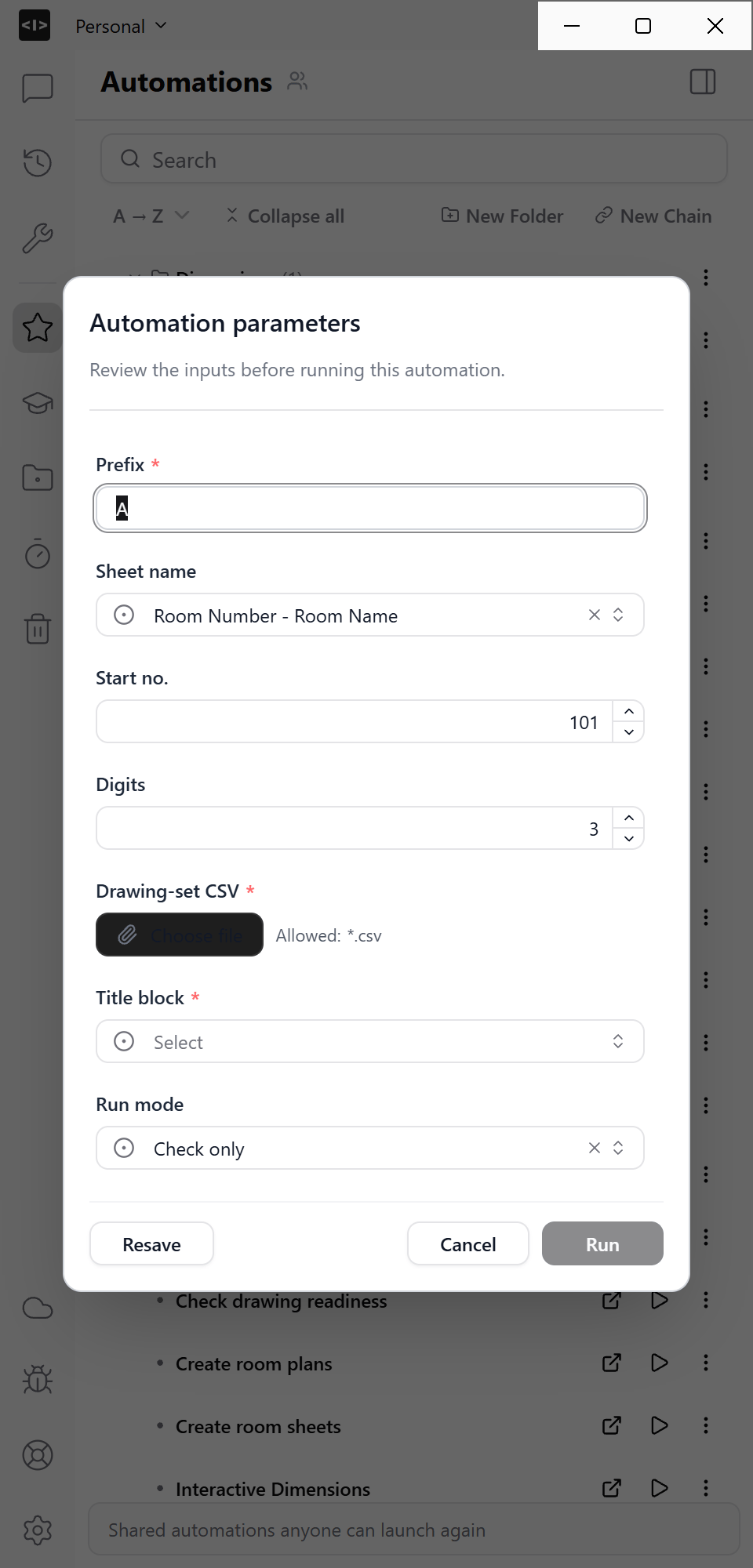
Turn this into a sheet-layout automation. Let me choose the views, title block, sheet-number prefix, starting number and layout margins. Check whether each view is already placed. Report views that do not fit and leave existing sheets unchanged.Test the automation on a small set. On its card, choose … → Star and save it as Arrange drawing sheets.
4
Run and inspect the package
Open the saved automation under Automations, choose Run with params and select the remaining views. Run it, then open every created sheet.The available fields depend on the automation you saved. This prepared example takes a drawing-set CSV, a title block and sheet-number settings.