

1
Open the model and connect Revit
Attach the IFC to a Studio chat and open its preview. In Revit, open the project that should receive the model. Select that document in Connected Apps.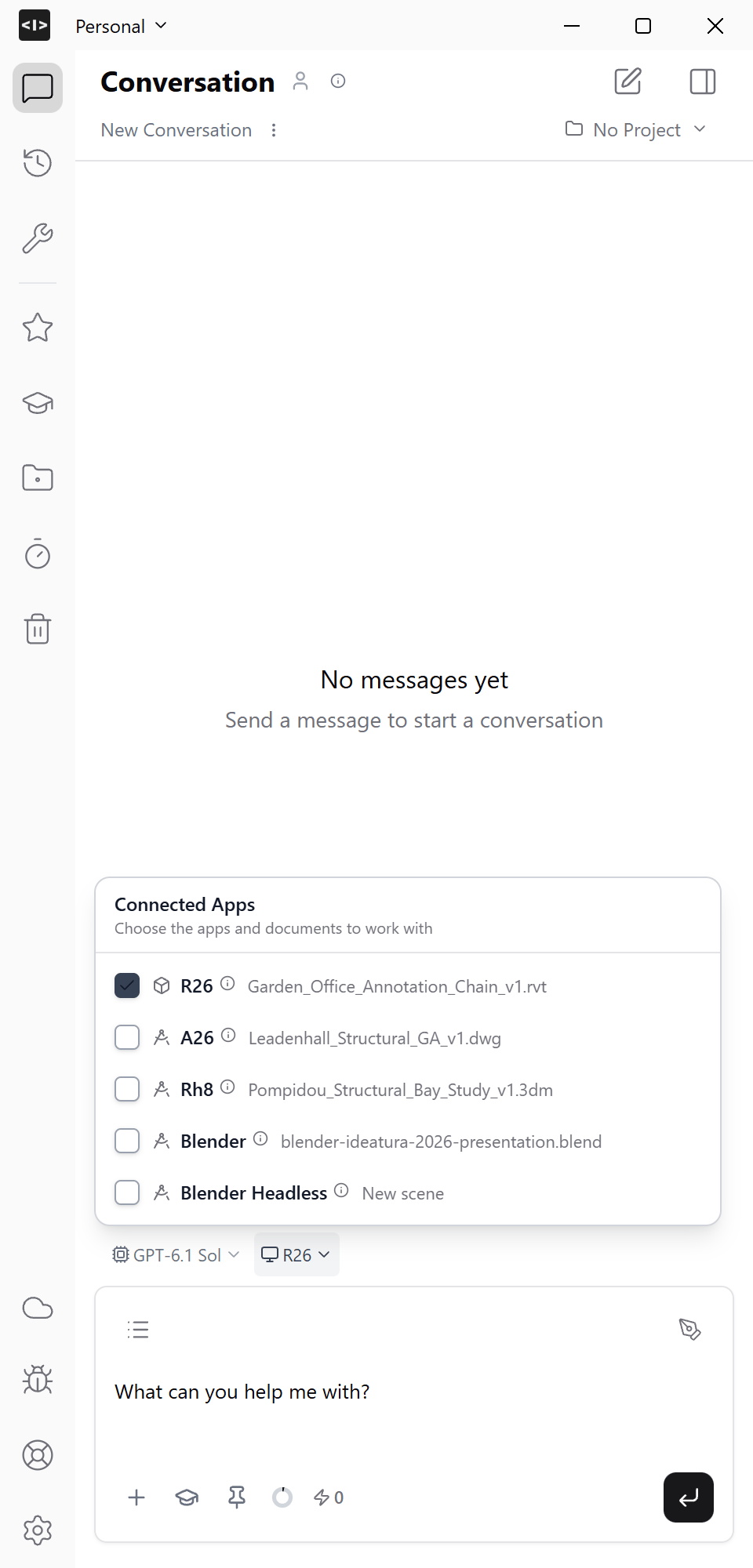
Inspect this IFC and the connected Revit project. Summarise the levels, element categories, units and overall dimensions. Propose how to recreate the building with native Revit elements. Identify anything that would need a simplified representation.
2
Agree on what to create
Check the proposed levels, origin and element mapping. For an editable building, specify walls, floors, roofs and hosted components explicitly.
Recreate the approved building in this Revit project. Use native walls and floors where the geometry allows it. Preserve the IFC’s dimensions, levels and openings. Tell me which elements cannot be recreated natively before substituting another representation. Keep existing project elements unchanged.An IFC link, imported shape and native Revit element serve different purposes. Ask for the representation you need; a matching appearance alone does not establish editability.
3
Inspect the Revit result
Compare a plan and a 3D view with the IFC. Check the overall dimensions, levels, openings and element categories. Select a few walls and floors in Revit to inspect their types and editable properties.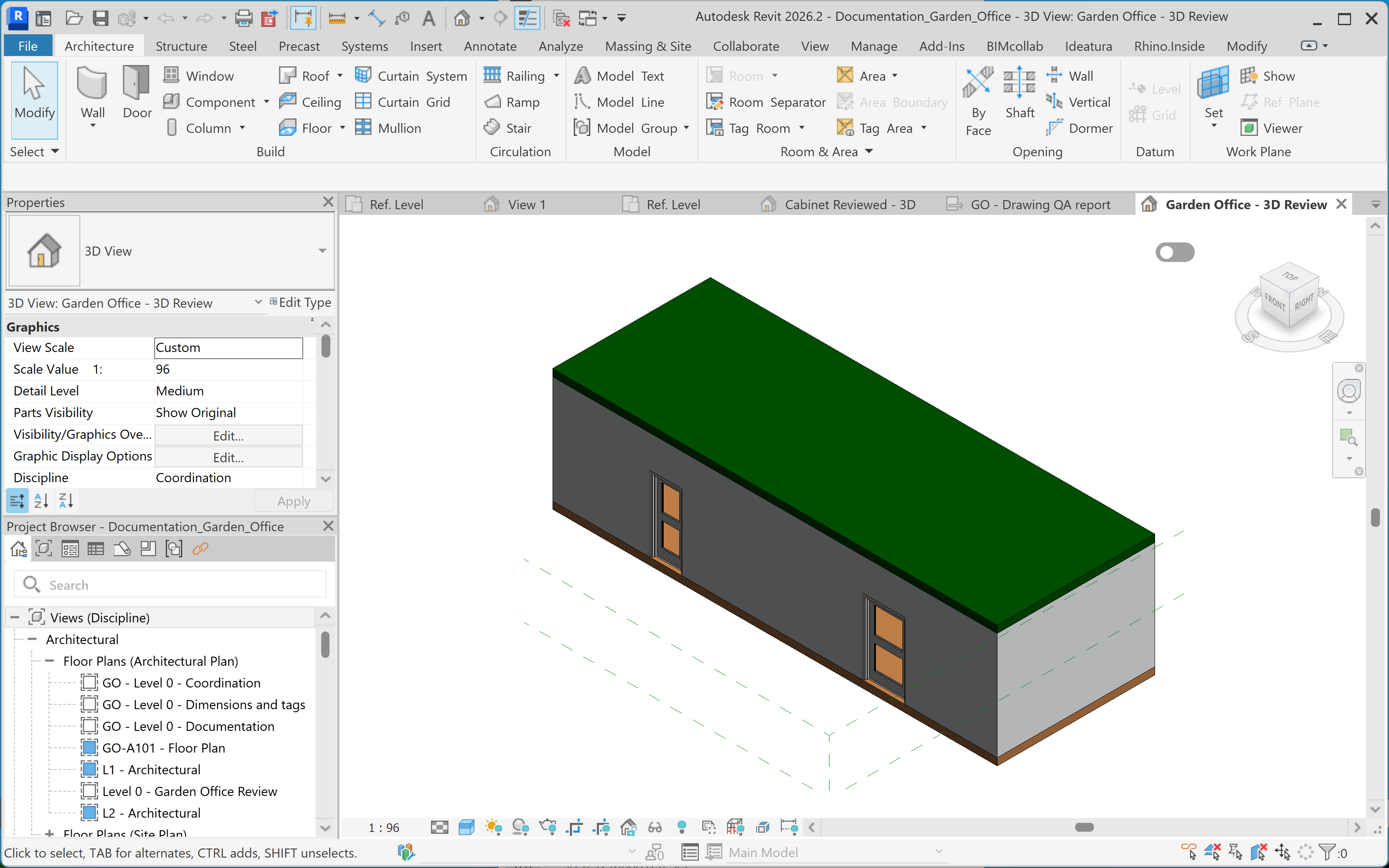
Compare the Revit result with the source IFC. Report dimension differences, missing elements and any geometry that remains imported or represented as DirectShape. Do not change the model during this check.
4
Save the checked model
Resolve the differences, save the Revit project and keep the source IFC with it. Continue with plans and elevations.